
Resetting your password should take you no longer than two minutes.
Please follow the steps below:
1. Go to the PLM Scamark website using this link: https://plm.scamark.com/orbcprod/app
Then, press 'Click here'.
2. In the next window, enter your username (which is most likely your email address) and click ‘Next’.
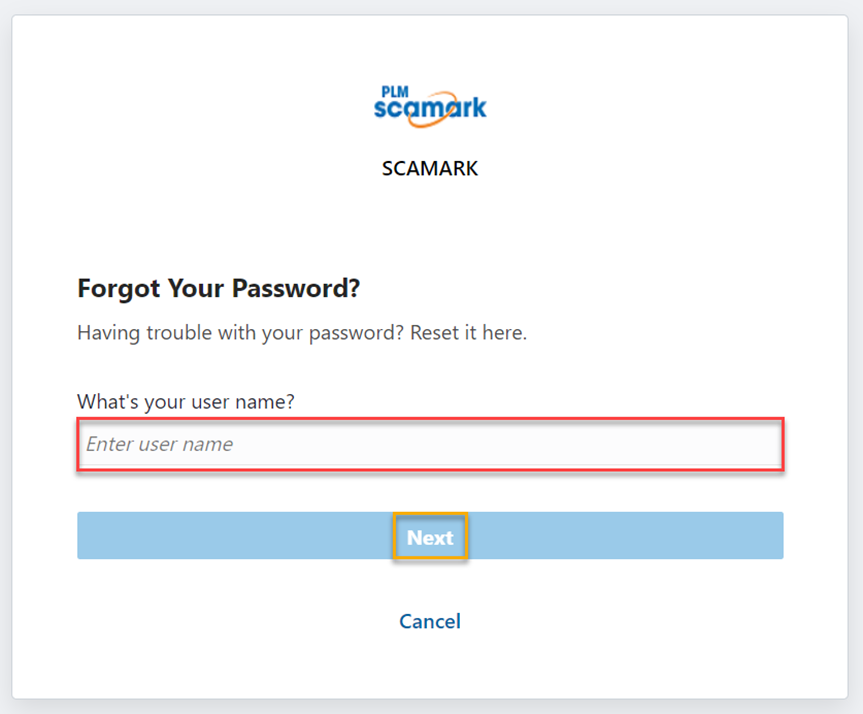
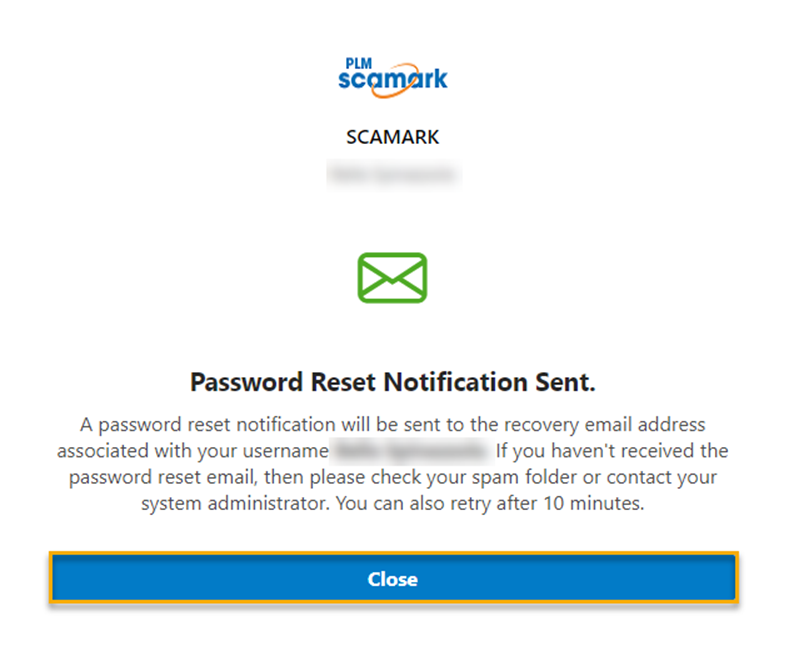
3. The PLM Scamark portal (no-reply@oracle.com) will email you to the address that is linked to the account you have tried to log in to earlier. If you have not received anything, please call the support team at +33 1 76 28 43 76
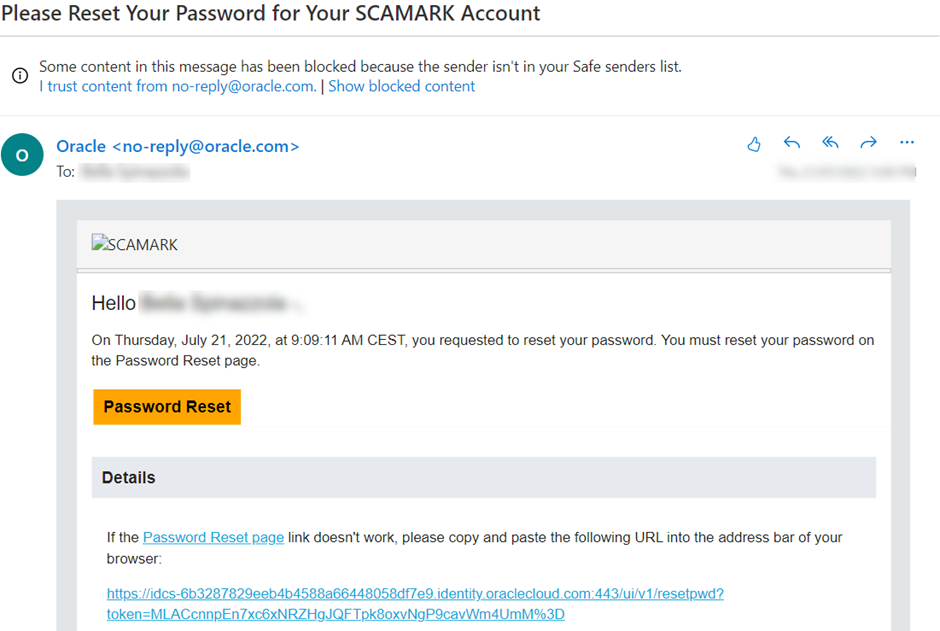
4. Once you receive the email, click on the 'Password Reset' link in the orange box. Please note that you will need to use Google Chrome or Microsoft Edge browsers in order to reset your password. You will encounter performance issues if you use Mozilla Firefox and Safari.
Type in and confirm your new password. Your new password must:
The password must contain at least 12 characters
The password cannot be over 40 characters
The password cannot contain the first name of the user
The password cannot contain the last name of the user
The password cannot contain the username
The password must contain at least 1 lowercase
The password must contain at least 1 uppercase
The password must contain at least 1 numeric character
Impossible to reuse the last 4 passwords
5. Finally, once you have chosen your new password, you can log in to the PLM Scamark with your new password following this link: https://plm.scamark.com/rgbu-orbc-scam-prd1-bccs/orbcprod/
**Please safely note your username and password**
If you have any questions, please contact us by email at plmscamark@msacsolutions.com
Feel free to contact one of our technical support team members between 9am and 5pm Monday through Friday (Central European Time) by calling +33 1 76 28 43 76
Comments
0 comments
Article is closed for comments.