
Printing a specification can be done in four easy steps:
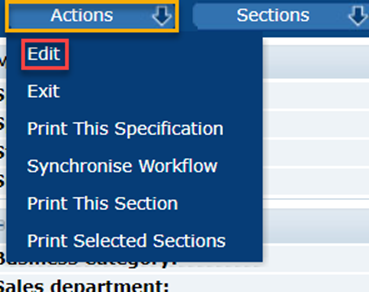
- With the spec open, click ‘Actions’ then click ‘Edit’
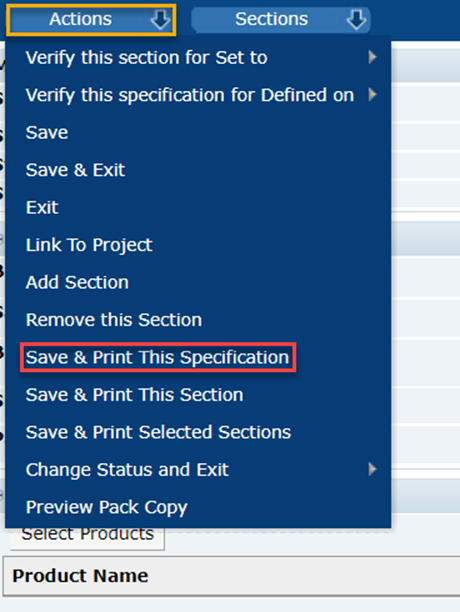
- Then, click on ‘Actions’ again then ‘Save & Print This specification’
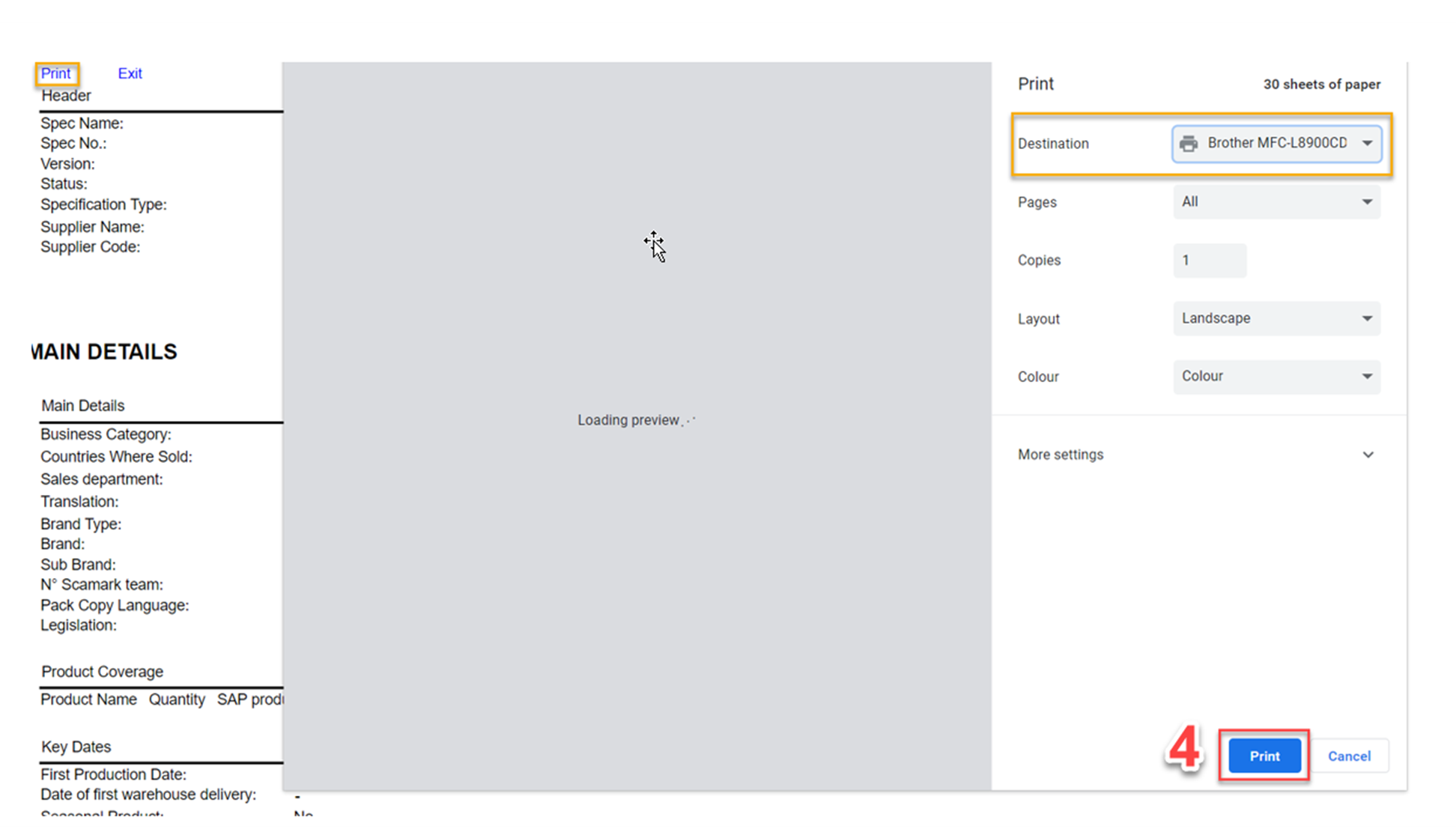
- Click on the ‘Print’ button at the top left-hand side of the window that opens. Then, in the window that will appear to the right, choose the destination, i.e., save as PDF or your printer.
- Then, click ‘Print’ on the bottom left-hand corner
If after clicking on ‘Actions’ then ‘Print this specification’ nothing happens, there is a high chance that this is due to the fact that the internet browser is blocking the printing window.
You will know that a pop-up window has been blocked if this warning icon appears on the top right-hand corner of your browser 
On the PLM's homepage, you should click on this notification and change the pop-up blocker from Continue blocking to Always allow pop-ups and redirects from https://plm.scamark.com
You should then close the specification and reopen it so that the modification can be taken into account. If you still can't print, log off from the PLM portal and reconnect again.
You can contact us by email at plmscamark@msacsolutions.com
Feel free to contact one of our technical support team members between 9am and 5pm Monday through Friday by calling +33 1 76 28 43 76
Comments
0 comments
Article is closed for comments.