
When a person with a PLM profile no longer PLM system there are some steps to follow in order to create a new user with the same rights and capabilities as the previous one.
It is important to note that the PLM system does not allow for existing user profiles to be renamed as the log in ID is not modifiable after it is created, the email attached to the account is also not modifiable by the PLM Support Team. Also, if a user profile has already made modifications on the portal their profile cannot be deleted in order to preserve a trail of changes made.
***Please note that the PLM Support team does not have the right to create new users on the portal, you will need to contact your administrators associated with your company. You can find people with this role by clicking on ‘Company’ then ‘Users’ – the role Supplier Administrator will be on the far right of the screen***
Adding a new user on the PLM Scamark portal is a two-step process which must be followed in the order below:
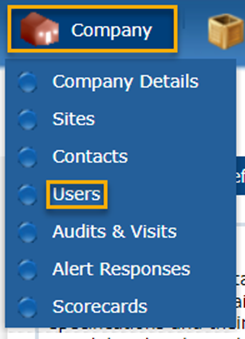
- Firstly, you will need to create a ‘User’ profile which will send them an activation email. You can do so by clicking ‘Company’ then ‘Users’
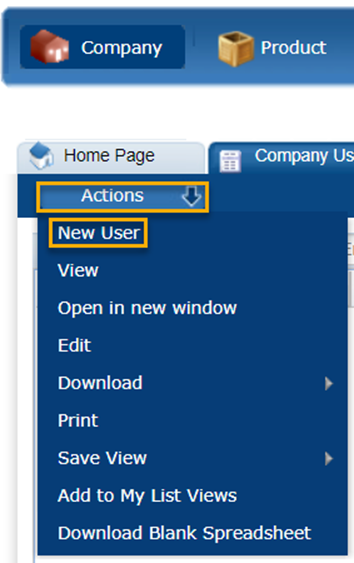
- In the next screen, click ‘Actions’ then ‘New User’
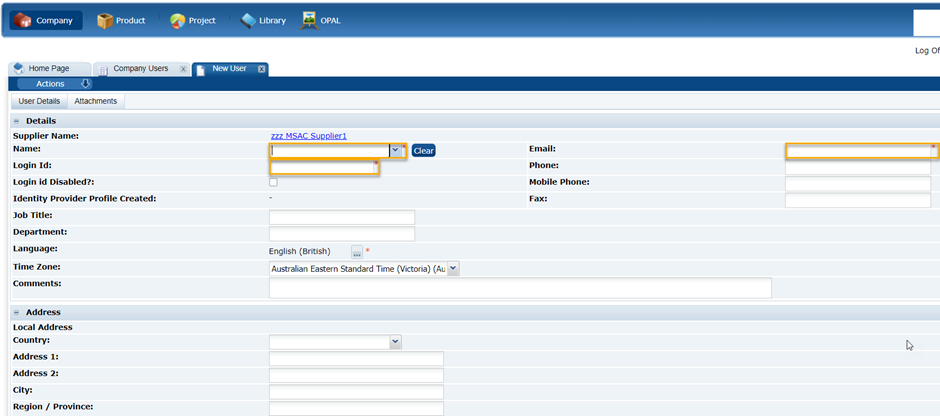
3. Next, fill in the 'User' profile fields indicated in the screenshot below:
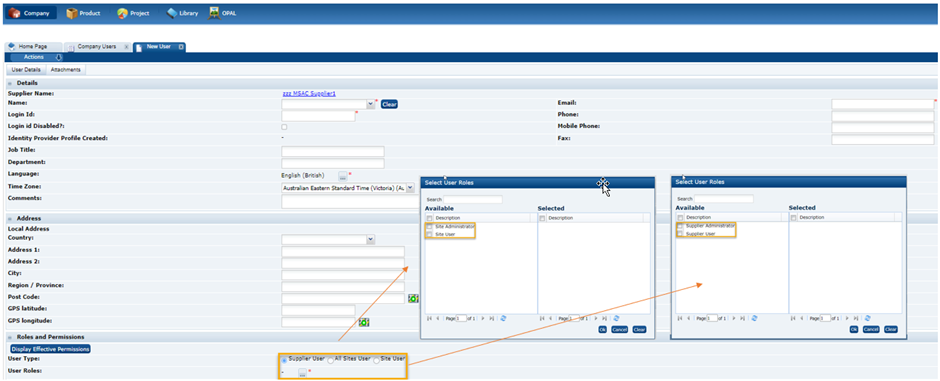
4. Choose the type of user profile that this person will need from the following options:
-
- 'Supplier Administrator':
- This profile has the maximum number of rights on the PLM portal, and they can modify company and site information, as well as create and modify contact if necessary. This role can be attributed to as many users as you like.
- 'Supplier User':
- This profile has access to all information on the PLM portal, but in read-only mode – they are not allowed to edit any information.
- 'Site Administrator':
- This profile can modify information related ONLY to the site on the PLM portal (e.g. Certifications) but they cannot see nor modify contacts or users (which is information relating to the Company).
- 'Site User':
- This profile can access site information, but cannot make changes. They will not have access to contacts and users.
- 'Supplier Administrator':
**Important: The following roles must be attributed to ‘Supplier Administrators’ or ‘Supplier Users’ :
- Sales Manager
- Crisis Management Primary Contact
- Crisis Management Contact (outside office hours) Please note: this person must have a mobile phone number entered into their ‘User’ profile.
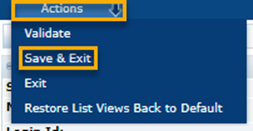
5. Once you have created the user profile, click ‘Actions’ then ‘Save and Exit’.
The second part of creating a profile on the PLM portal is creating the ‘Contact’ profile.
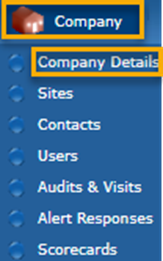
- Click on ‘Company’ then ‘Company Details’
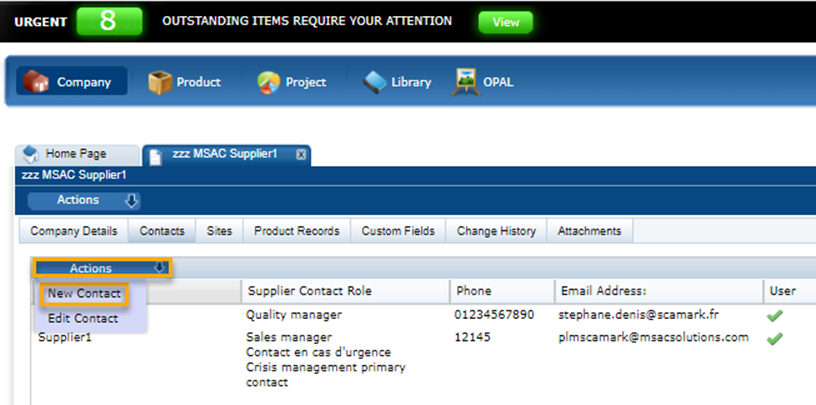
2. Then, click on the ‘Contacts’ tab then the smaller ‘Actions’ menu, finally, ‘New Contact’
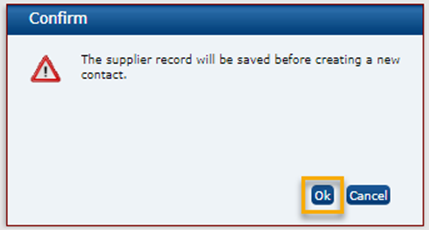
3. A message will appear – click ‘Ok’
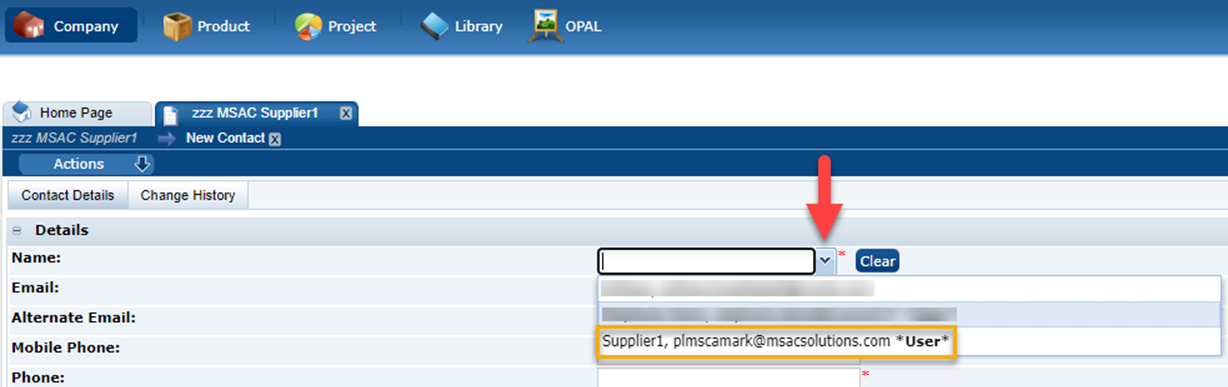
4. In the next screen, click on the arrow which is next to the name box – a list of user profiles will appear – click on the user you would like to create a contact profile for.
5. Next, you will need to select the contact roles for this person – on a company level and on a site level.
Please note that there are some contact roles which are compulsory to add, but you can add them to users of your choice. These are marked with a yellow asterisk and include:
- Sales Manager (Company and Site)
- Crisis Management Primary Contact (Company and Site)
- Crisis Management Contact (outside office hours) (Company and Site) - Please note: this person must have a mobile phone number entered into their ‘User’ profile.
- Specification Admin Contact (Site only)
- Quality Manager (Site only)
5a. Select company contact roles by clicking the three little horizontal dots.
5b. If this person is also a site contact - select 'yes' then click the three little horizontal dots to add site contact roles.
If you need further information on this topic, please read pages 15-27 of the Quick Start Guide, which you can request a copy of from the PLM Scamark Support Team.
You can contact us by email at plmscamark@msacsolutions.com
Feel free to contact one of our technical support team members between 9am and 5pm Monday through Friday (Central European Time) by calling +33 1 76 28 43 76
Comments
0 comments
Article is closed for comments.